
.avif)





Download the App & Start Learning
- Expert Faculty Guidance
- Updated Study Material
- Mock Tests & Practice Quiz
- Live Doubt Solving Sessions
- Exam-Oriented Preparation
- Motivation & Success Strategy
Katara Academy

26/10/2026
Prepare for computer knowledge with this practical guide to file and folder management, file extensions, internet terminology, web browsers, email, downloading and uploading. Revise key concepts and test your understanding with practice MCQs.
File management and internet basics are useful computer knowledge topics for competitive examination preparation. Understanding how files are stored, organized, searched and shared can help you answer computer-awareness questions more confidently.
This guide explains the essential concepts in simple language, with examples, quick revision tables and practice questions. Use it alongside your other SSC CHSL computer preparation resources.
The SSC CHSL 2026 notification includes computer topics such as Windows Explorer, web browsing and searching, downloading and uploading, and managing an email account. The official SSC CHSL 2027 notification should be checked when available before treating any topic as confirmed for the 2027 examination.
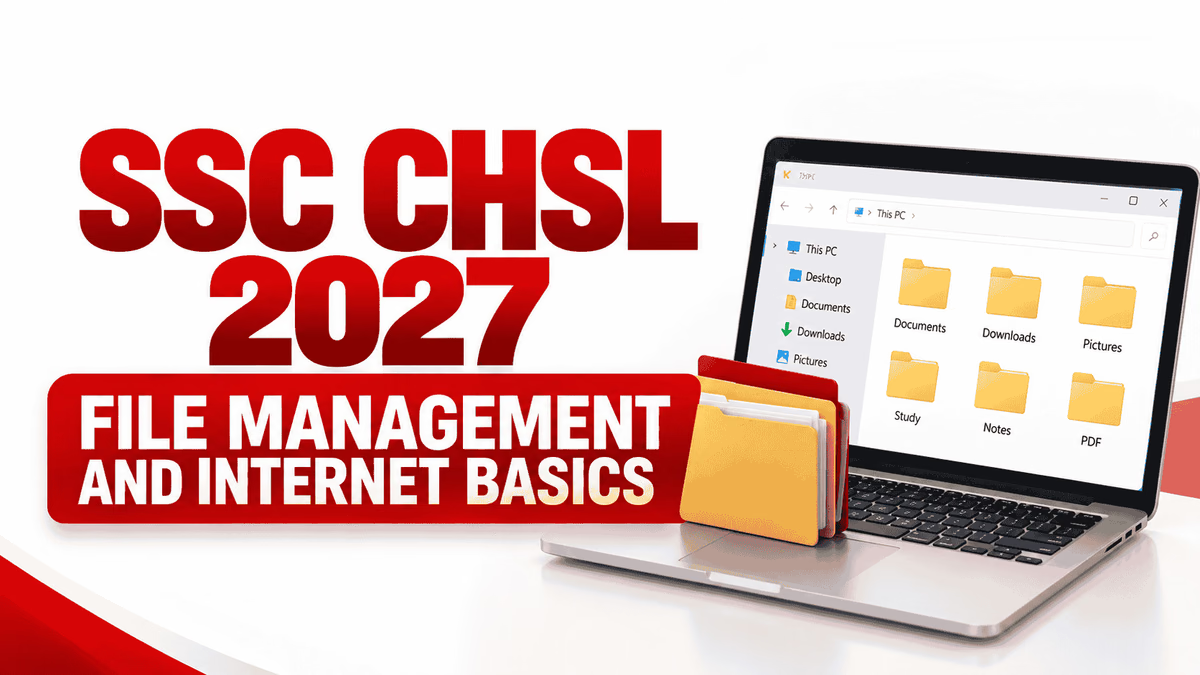
File management is the process of creating, naming, storing, organizing, locating, copying, moving and deleting digital files and folders. It helps users keep documents, photographs, spreadsheets and other information organized on a computer.
In Windows, File Explorer is used to browse drives, folders and files. It allows users to open documents, organize their data, search for items and manage storage locations.
A file is a named collection of digital information stored on a computer or another storage device. Examples include a Word document, a photograph, a PDF report and an audio recording.
A folder is a container used to organize files and other folders. For example, a student can create an SSC CHSL Preparation folder containing separate folders for Computer Knowledge, English and General Awareness.
A file extension is the part of a filename that usually appears after the final dot. It often indicates the file format or type.
| Extension | Common File Type | Example |
|---|---|---|
| .docx | Word document | notes.docx |
| .xlsx | Excel workbook | marks.xlsx |
| .pptx | PowerPoint presentation | lesson.pptx |
| Portable Document Format | notice.pdf | |
| .txt | Plain text file | readme.txt |
| .jpg / .png | Image files | photo.jpg |
| .mp3 | Audio file | recording.mp3 |
| .zip | Compressed archive | documents.zip |
Exam tip: Remember the difference between a filename and a file extension. Renaming a file's extension does not necessarily convert the file into another format.
Understand what each operation does before memorizing its keyboard shortcut.
| Operation | Purpose | Common Shortcut |
|---|---|---|
| Create a folder | Make a new folder | Ctrl + Shift + N |
| Copy | Duplicate selected content | Ctrl + C |
| Cut | Prepare selected content to move | Ctrl + X |
| Paste | Insert copied or cut content | Ctrl + V |
| Rename | Change a file or folder name | F2 |
| Delete | Remove selected item | Delete |
| Select all | Select all items in the current context | Ctrl + A |
| Search | Find files or folders | Ctrl + F or Windows + S, depending on context |
In Windows, files deleted using the usual Delete command from a local drive are generally moved to the Recycle Bin, where they may be restored. Files deleted using Shift + Delete typically bypass the Recycle Bin. Behaviour can vary by storage location and application.
Always check the selected item and its location before deleting files. Keep backup copies of important study documents.
The internet is a global network of interconnected computer networks that communicate using standard protocols. It supports services such as websites, email, online learning, file sharing and digital banking.
A web browser is software used to open and interact with websites and web applications. Examples include Google Chrome, Microsoft Edge, Mozilla Firefox and Apple Safari.
A search engine helps users discover web pages and other online information by entering search terms. Examples include Google Search and Bing.
Browser: The application used to access websites.
Search engine: An online service used to find information. A search engine can be opened inside a browser.
A URL (Uniform Resource Locator) is the address used to locate a resource on the web. It may contain a protocol, domain name, path and optional query parameters.
Example: In a web address that begins with https://, the protocol indicates how the browser connects to the website.
Downloading and uploading are common internet operations, but they describe data moving in different directions.
Before downloading, check that the source is trustworthy and that the file type is expected. Before uploading, confirm that you selected the correct document and that you are sharing it with the intended website or recipient.
Email (electronic mail) is a service used to exchange digital messages and attachments over a network.
Basic digital safety knowledge helps users protect their accounts and files while using online services.
Common exam confusion: A browser is not the same as a search engine; downloading is not uploading; and deleting a file is not the same as backing it up.
Try these questions before opening the answer key.
Q1. Which Windows shortcut is commonly used to rename a selected file?
A. F1 B. F2 C. F5 D. F12
Answer: B. F2
F2 is commonly used to rename a selected file or folder in File Explorer.
Q2. Which file extension is commonly associated with a PDF document?
A. .xlsx B. .mp3 C. .pdf D. .pptx
Answer: C. .pdf
PDF stands for Portable Document Format.
Q3. Which of the following is a web browser?
A. Google Chrome B. Google Search C. A URL D. An IP address
Answer: A. Google Chrome
Chrome is a browser. Google Search is a search engine.
Q4. What does downloading mean?
A. Sending a file from your device to a website
B. Receiving data from a remote service onto your device
C. Renaming a folder
D. Deleting an email
Answer: B. Receiving data from a remote service onto your device.
Q5. Which email field is commonly used to send a copy while hiding recipients' addresses from other recipients?
A. To B. CC C. BCC D. Subject
Answer: C. BCC
BCC means Blind Carbon Copy.
Q6. Which shortcut is commonly used to create a new folder in Windows File Explorer?
A. Ctrl + Shift + N B. Ctrl + P C. Alt + F4 D. Ctrl + Z
Answer: A. Ctrl + Shift + N
This shortcut creates a new folder in File Explorer.
Q7. What is the primary purpose of a search engine?
A. Create folders B. Find information and web pages C. Rename files D. Store files only on a local drive
Answer: B. Find information and web pages.
Q8. Which practice helps protect an email account?
A. Sharing OTPs B. Reusing one password everywhere C. Using a unique password and multi-factor authentication D. Opening every attachment
Answer: C. Using a unique password and multi-factor authentication.
File management means organizing and handling digital files and folders, including creating, naming, copying, moving, searching and deleting them.
A file contains digital information, while a folder is used to organize files and other folders.
A browser is software used to access websites. A search engine is a service that helps users find information online through search queries.
Downloading receives data from a remote service onto your device. Uploading sends data from your device to a remote service.
BCC stands for Blind Carbon Copy. It lets you send a copy of an email without displaying those recipients' addresses to the other recipients.
Revise common shortcuts such as Ctrl + C for copy, Ctrl + X for cut, Ctrl + V for paste, F2 for rename, Delete for deleting a selected item and Ctrl + Shift + N for creating a new folder in Windows File Explorer.
Check the official SSC CHSL 2027 notification when it is released. The 2026 notification includes related computer knowledge topics, but the next examination's official syllabus must be verified separately.
Continue your preparation with related Katara Academy resources:
Explore available exam-preparation resources, online classes, recorded lectures, notes, PDFs and test series through the Katara Academy app.
File and folder operations, file extensions, web browsers, search engines, URLs, downloading, uploading and email terminology form a useful foundation for computer preparation. Revise the differences between similar terms, practise common keyboard shortcuts and solve questions regularly.
For SSC CHSL 2027, use this article as a revision resource and confirm the final examination syllabus from the official notification when it becomes available. Consistent practice and accurate revision can help you prepare more effectively.
Katara Academy | Competitive Exam Preparation