



Download the App & Start Learning
- Expert Faculty Guidance
- Updated Study Material
- Mock Tests & Practice Quiz
- Live Doubt Solving Sessions
- Exam-Oriented Preparation
- Motivation & Success Strategy
Katara Academy

10/9/2026
KATARA ACADEMY | SSC CGL 2027
Revise essential Windows and MS Office keyboard shortcuts with quick-reference tables, practical examples and exam-style practice questions.
The SSC CGL 2027 notification may introduce or clarify examination requirements. Use this article as a computer-awareness revision guide and check the official SSC notification for the final syllabus and examination pattern when it is released. Keyboard shortcuts are useful computer knowledge, but this list is not an official SSC question prediction.
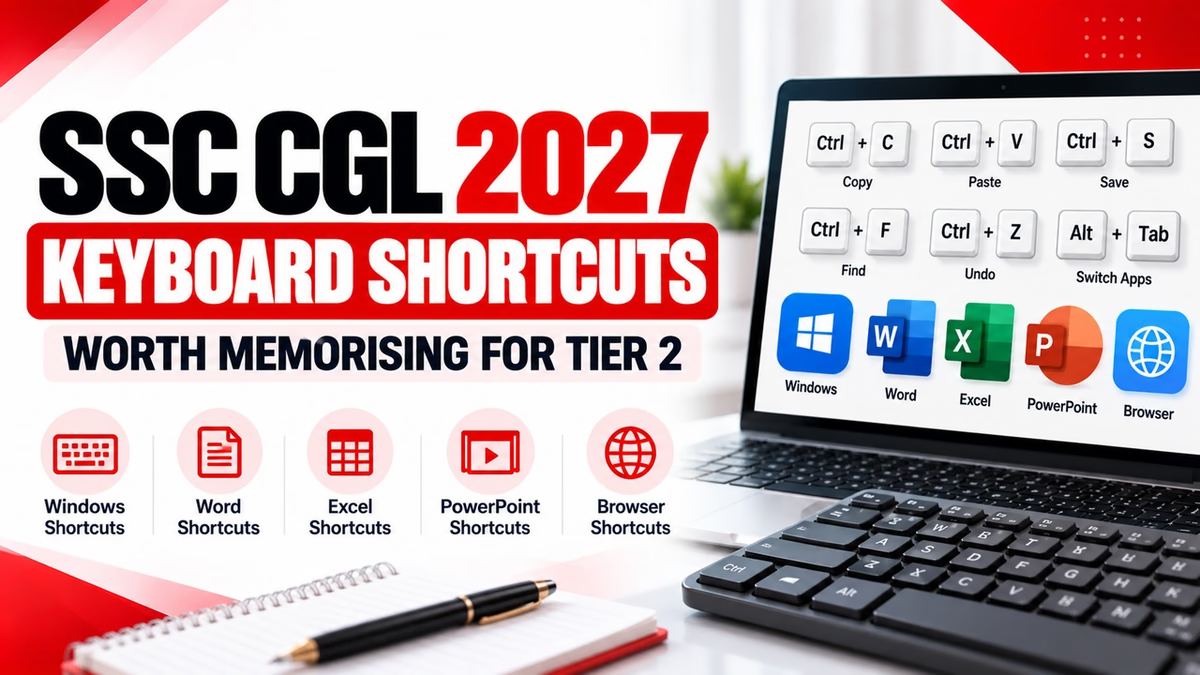
Keyboard shortcuts allow users to perform common computer operations quickly by pressing one or more keys. They are widely used in Windows and applications such as Microsoft Word, Excel and PowerPoint.
For SSC CGL computer preparation, learning common shortcuts can strengthen your understanding of basic computer operations and MS Office. Instead of memorising a long list at once, group shortcuts according to their purpose and revise them regularly.
Smart Revision Tip:
Learn the shortcut, its function and the application in which it is used. Some shortcuts behave differently across applications, so check the context before memorising them.
Start with shortcuts used for everyday computer operations. These commands are useful for managing files, switching applications and working efficiently in Windows.
| Shortcut | Function |
|---|---|
| Ctrl + C | Copy selected content |
| Ctrl + X | Cut selected content |
| Ctrl + V | Paste copied or cut content |
| Ctrl + Z | Undo the previous action |
| Ctrl + Y | Redo or repeat an action in supported applications |
| Ctrl + A | Select all items or content in the active area |
| Alt + Tab | Switch between open applications |
| Alt + F4 | Close the active application or window |
| Windows + E | Open File Explorer |
| Windows + D | Show or hide the desktop |
| Ctrl + Shift + Esc | Open Task Manager directly |
| F2 | Rename a selected file in File Explorer |
| Delete | Move selected files to the Recycle Bin in typical File Explorer use |
| Shift + Delete | Delete selected files without placing them in the Recycle Bin in typical Windows use |
These shortcuts are commonly used in document editors and many other applications. They are especially useful when revising basic MS Office operations.
| Shortcut | Function |
|---|---|
| Ctrl + N | Create a new document or file in supported applications |
| Ctrl + O | Open a file |
| Ctrl + S | Save the current file |
| Ctrl + P | Open print options |
| Ctrl + F | Find text or content |
| Ctrl + H | Open Find and Replace in applications that support it |
| Home | Move to the beginning of the current line in many text editors |
| End | Move to the end of the current line in many text editors |
| Ctrl + Home | Move to the beginning of a document in many editors |
| Ctrl + End | Move to the end of a document in many editors |
Microsoft Word is used to create and format text documents. Revise common formatting shortcuts along with commands for document navigation and editing.
| Shortcut | Function in Word |
|---|---|
| Ctrl + B | Apply or remove bold formatting |
| Ctrl + I | Apply or remove italic formatting |
| Ctrl + U | Apply or remove underline |
| Ctrl + L | Align paragraph to the left |
| Ctrl + E | Centre-align a paragraph |
| Ctrl + R | Align paragraph to the right |
| Ctrl + J | Justify a paragraph |
| Ctrl + K | Insert a hyperlink |
| Ctrl + Enter | Insert a page break |
Excel is used to organise information in worksheets and perform calculations. These common shortcuts help users manage cells, data and workbooks.
| Shortcut | Function in Excel |
|---|---|
| F2 | Edit the active cell |
| Ctrl + 1 | Open the Format Cells dialog box |
| Alt + = | Insert AutoSum in supported Excel contexts |
| Ctrl + ; | Insert the current date into a cell |
| Ctrl + Shift + L | Toggle filters for a data range or table in supported Excel versions |
| Ctrl + Page Up | Move to the previous worksheet |
| Ctrl + Page Down | Move to the next worksheet |
| Ctrl + Arrow Key | Move to the edge of a data region in the direction pressed |
PowerPoint is used to create slide-based presentations. Focus on commands for inserting slides, starting a presentation and editing content.
| Shortcut | Function in PowerPoint |
|---|---|
| Ctrl + M | Insert a new slide |
| F5 | Start the slide show from the beginning |
| Shift + F5 | Start the slide show from the current slide |
| Esc | End the slide show |
| Ctrl + D | Duplicate a selected object or slide in supported contexts |
| Ctrl + G | Group selected objects in supported editing contexts |
These shortcuts are useful for navigating websites and browser tabs. Exact behaviour can vary slightly by browser and operating system.
| Shortcut | Function |
|---|---|
| Ctrl + T | Open a new browser tab |
| Ctrl + W | Close the current tab or document in supported applications |
| Ctrl + Shift + T | Reopen the most recently closed browser tab in common browsers |
| Ctrl + L | Focus the browser address bar in common browsers |
| Ctrl + R | Reload the current page in common browsers |
| Ctrl + D | Bookmark the current page in common browsers |
Watch Out for Context:
The same shortcut may perform different actions in different applications. For example, Ctrl + D can have different meanings in Excel, PowerPoint and a web browser. Always learn the application alongside the shortcut.
| Shortcut | Important Distinction |
|---|---|
| Alt + Tab | Switches between open applications |
| Alt + F4 | Closes the active window or application |
| Ctrl + F | Finds text or content in many applications |
| Ctrl + H | Opens Find and Replace in supported applications |
| F5 in PowerPoint | Starts the slide show from the beginning |
| F2 in File Explorer / Excel | Renames a selected file in File Explorer; edits the active cell in Excel |
Attempt these questions before checking the answers. They are practice questions for revision, not official or predicted SSC questions.
Q1. Which shortcut is commonly used to save a file?
A) Ctrl + P B) Ctrl + S C) Ctrl + X D) Ctrl + F
Answer: B) Ctrl + S
Q2. Which shortcut opens Task Manager directly in Windows?
A) Ctrl + T B) Alt + F4 C) Ctrl + Shift + Esc D) Windows + D
Answer: C) Ctrl + Shift + Esc
Q3. Which shortcut inserts a new slide in PowerPoint?
A) Ctrl + M B) Ctrl + H C) Ctrl + J D) Ctrl + L
Answer: A) Ctrl + M
Q4. Which shortcut starts a PowerPoint slide show from the beginning?
A) F2 B) F5 C) Esc D) Shift + F5
Answer: B) F5
Q5. Which shortcut applies bold formatting in Microsoft Word?
A) Ctrl + U B) Ctrl + I C) Ctrl + B D) Ctrl + E
Answer: C) Ctrl + B
Q6. Which shortcut is commonly used to find text?
A) Ctrl + F B) Ctrl + S C) Ctrl + V D) Ctrl + N
Answer: A) Ctrl + F
Q7. Which shortcut opens the Format Cells dialog box in Excel?
A) Ctrl + 1 B) Ctrl + 2 C) Alt + 1 D) Shift + 1
Answer: A) Ctrl + 1
Q8. Which shortcut switches between open applications in Windows?
A) Alt + Tab B) Ctrl + S C) Windows + E D) Ctrl + P
Answer: A) Alt + Tab
| Day | Revision Task |
|---|---|
| Day 1 | Windows shortcuts and file management |
| Day 2 | General editing and Microsoft Word shortcuts |
| Day 3 | Microsoft Excel shortcuts |
| Day 4 | PowerPoint and browser shortcuts |
| Day 5 | Mixed practice questions and revision of mistakes |
Begin with Ctrl + C, Ctrl + X, Ctrl + V, Ctrl + Z, Ctrl + A, Ctrl + S, Ctrl + P, Ctrl + F and Alt + Tab. Then revise application-specific shortcuts for Word, Excel and PowerPoint.
No. Shortcuts are only one part of computer preparation. Also revise computer fundamentals, operating systems, MS Office concepts, internet, networking and cyber security according to the applicable official syllabus.
No. Some shortcuts have different functions depending on the application or context. Learn each shortcut together with the software in which it is used.
Use short daily revision sessions, practise the commands on a computer when possible and test yourself with mixed questions. Review incorrect answers after each practice session.
Keyboard shortcuts become easier to remember when they are grouped by purpose and application. Start with essential Windows commands, move to Word, Excel and PowerPoint, and then revise browser shortcuts.
Practise the combinations regularly and pay attention to application-specific differences. For SSC CGL 2027, confirm the final syllabus and examination instructions from the official SSC notification when it is released.
Build strong computer fundamentals with focused preparation and regular practice at Katara Academy.