
Download the App & Start Learning
- Expert Faculty Guidance
- Updated Study Material
- Mock Tests & Practice Quiz
- Live Doubt Solving Sessions
- Exam-Oriented Preparation
- Motivation & Success Strategy
Katara Academy

10/8/2026
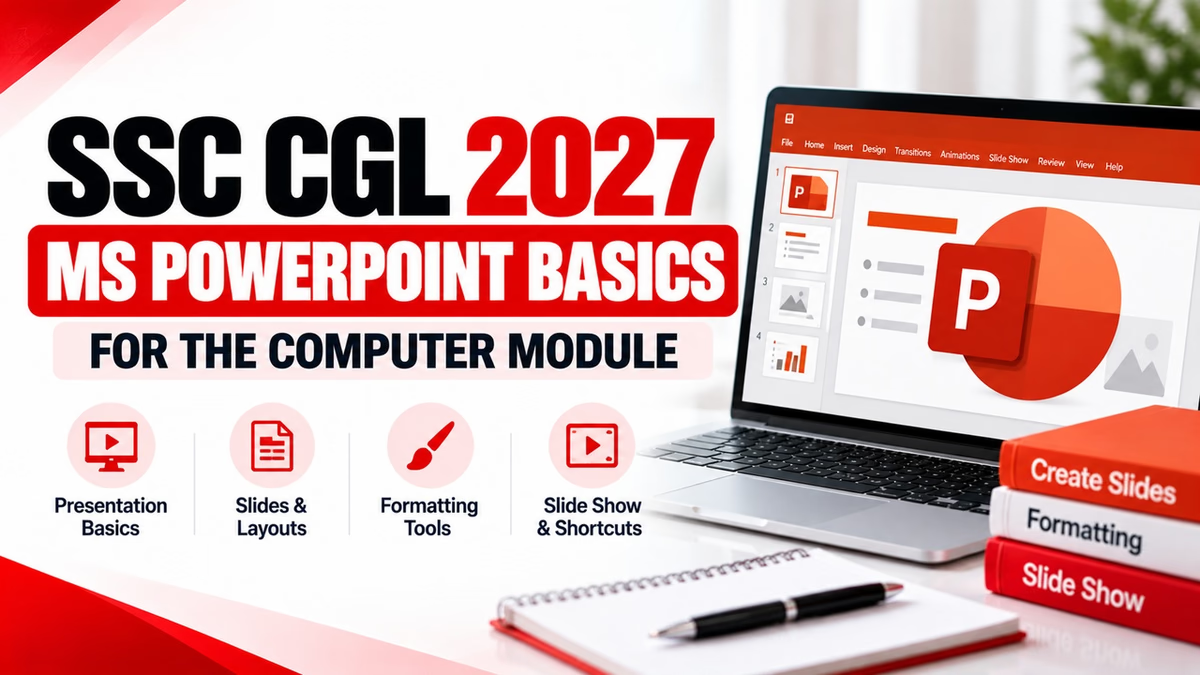
Learn important MS PowerPoint concepts, slide layouts, formatting tools, presentation features and keyboard shortcuts for SSC CGL Computer preparation.
The SSC CGL 2027 notification has not yet been released. Candidates should therefore use the latest available SSC syllabus and examination framework as a preparation reference and verify the final syllabus and instructions from the official SSC notification when it is released.
Microsoft PowerPoint is a presentation application used to create, organise and display information through slides. It is one of the major applications included under the broader MS Office ecosystem.
For SSC CGL Computer preparation, candidates should understand the basic terminology and functions associated with presentation software. Questions can test the purpose of slides, layouts, formatting, presentation views, slide shows and commonly used commands.
| Topic | What to Revise |
|---|---|
| Presentation Basics | Creating, opening, saving and presenting files |
| Slides | Adding, deleting, duplicating and arranging slides |
| Layouts | Title, content and other slide layout concepts |
| Formatting | Text, fonts, colours, shapes and alignment |
| Images & Objects | Inserting and arranging visual elements |
| Transitions | Effects used when moving from one slide to another |
| Animations | Effects applied to objects on a slide |
| Slide Show | Starting and controlling a presentation |
| Presentation Views | Normal, Slide Sorter and other basic views |
Microsoft PowerPoint is presentation software used to create slide-based presentations. A presentation can contain text, images, tables, charts, shapes and other visual elements.
A PowerPoint presentation is normally organised into individual slides. Each slide can have its own content and layout.
A slide is an individual page or screen within a PowerPoint presentation. Multiple slides are combined to create a complete presentation.
Candidates should know the basic operations that can be performed on slides, including:
A slide layout determines the arrangement of placeholders and content areas on a slide. Different layouts are used for different types of presentation content.
Text placed on slides can be formatted in several ways. Candidates should understand the basic formatting options used to improve readability.
PowerPoint allows users to add different types of visual content to slides. These objects can be resized, moved and formatted.
For exam preparation, focus on understanding what these objects are used for rather than memorising every available design option.
Transition and animation are two commonly confused PowerPoint concepts. Understanding the difference is important for computer-awareness questions.
| Feature | Meaning |
|---|---|
| Transition | Effect used when moving from one slide to another |
| Animation | Effect applied to an object or element within a slide |
Transition = Slide to Slide
Animation = Object on a Slide
Slide Show mode is used to display a presentation to an audience. During a slide show, slides are presented one after another.
Candidates should understand the purpose of Slide Show mode and basic controls used during a presentation.
| View | Main Purpose |
|---|---|
| Normal View | Main view used to create and edit slides |
| Slide Sorter View | Helps view and rearrange multiple slides |
| Slide Show View | Displays the presentation to the audience |
| Shortcut | Function |
|---|---|
| Ctrl + N | Create a new presentation |
| Ctrl + O | Open a presentation |
| Ctrl + S | Save the presentation |
| Ctrl + C | Copy selected content |
| Ctrl + X | Cut selected content |
| Ctrl + V | Paste content |
| Ctrl + Z | Undo the previous action |
| Ctrl + A | Select all |
| Ctrl + M | Insert a new slide in PowerPoint |
| F5 | Start a slide show from the beginning |
| Esc | Exit the slide show |
Test yourself with these basic questions after completing your revision.
1. What is Microsoft PowerPoint mainly used for?
Answer: Creating and delivering slide-based presentations.
2. What is an individual page in a PowerPoint presentation called?
Answer: Slide
3. Which view is useful for rearranging multiple slides?
Answer: Slide Sorter View
4. What is the difference between a transition and an animation?
Answer: A transition is applied between slides, while an animation is applied to an object or element within a slide.
5. Which key starts a PowerPoint presentation from the beginning?
Answer: F5
6. Which shortcut inserts a new slide?
Answer: Ctrl + M
7. Which view is normally used to create and edit individual slides?
Answer: Normal View
8. What is a slide layout?
Answer: A predefined arrangement of placeholders and content areas on a slide.
| Concept | Remember |
|---|---|
| Slide | Individual page of a presentation |
| Layout | Arrangement of content placeholders |
| Transition | Effect between two slides |
| Animation | Effect applied to an object on a slide |
| Normal View | Used mainly for creating and editing slides |
| Slide Sorter | Used to view and rearrange multiple slides |
Start with presentation, slide, layout, placeholder, transition, animation and slide show.
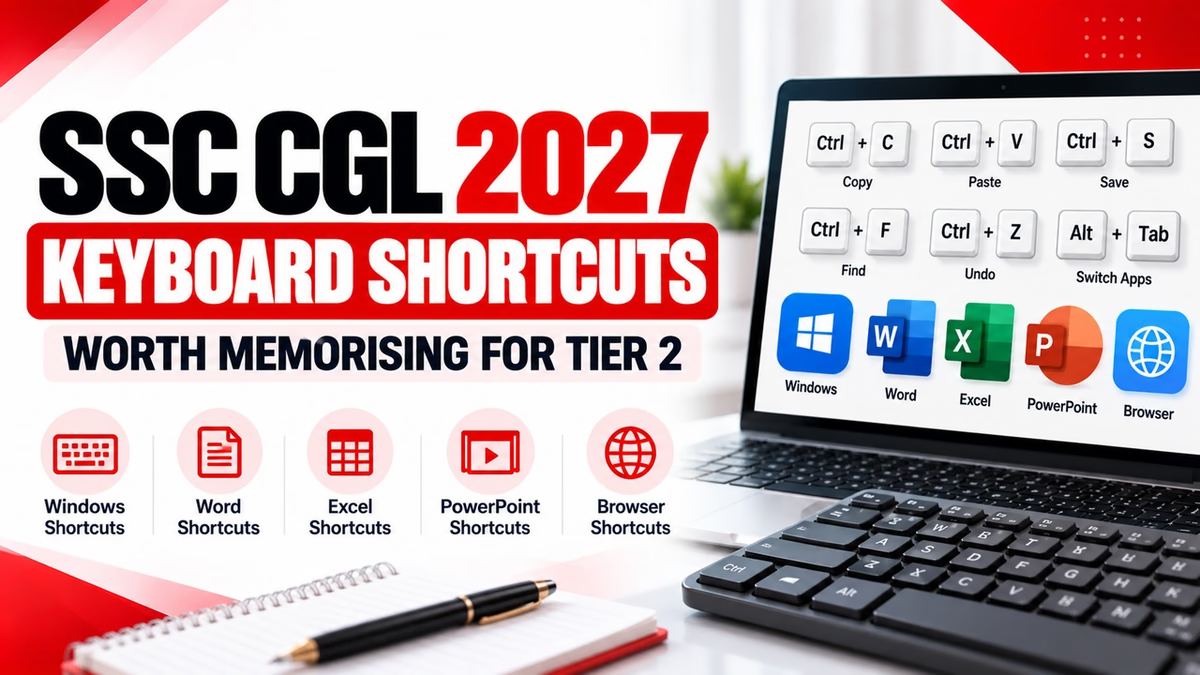
Revise frequently used commands such as Ctrl + S, Ctrl + C, Ctrl + V, Ctrl + Z, Ctrl + M and F5.
Learn the purpose of Normal View, Slide Sorter View and Slide Show View.
This is an easy area to confuse. Remember that transitions work between slides while animations work on objects within slides.
Solve computer-awareness questions after revision and maintain an error list for concepts that need another revision.
| Day | Revision Focus |
|---|---|
| Day 1 | PowerPoint basics, presentations and slides |
| Day 2 | Slide layouts, formatting and objects |
| Day 3 | Transitions, animations and slide show |
| Day 4 | Views and important keyboard shortcuts |
| Day 5 | Full revision and practice questions |
MS PowerPoint preparation for SSC CGL should begin with the fundamentals. Understand what a presentation and slide are, learn common layouts, revise formatting tools and understand the difference between transitions and animations.
Candidates should also revise PowerPoint views, slide-show controls and commonly used keyboard shortcuts. Regular practice questions can help identify concepts that need additional revision.
For SSC CGL 2027, always verify the final syllabus, examination pattern and instructions from the official SSC notification once it is released.
Strengthen your SSC CGL preparation with focused study, regular revision and practice at Katara Academy.