
Download the App & Start Learning
- Expert Faculty Guidance
- Updated Study Material
- Mock Tests & Practice Quiz
- Live Doubt Solving Sessions
- Exam-Oriented Preparation
- Motivation & Success Strategy
Katara Academy

10/8/2026
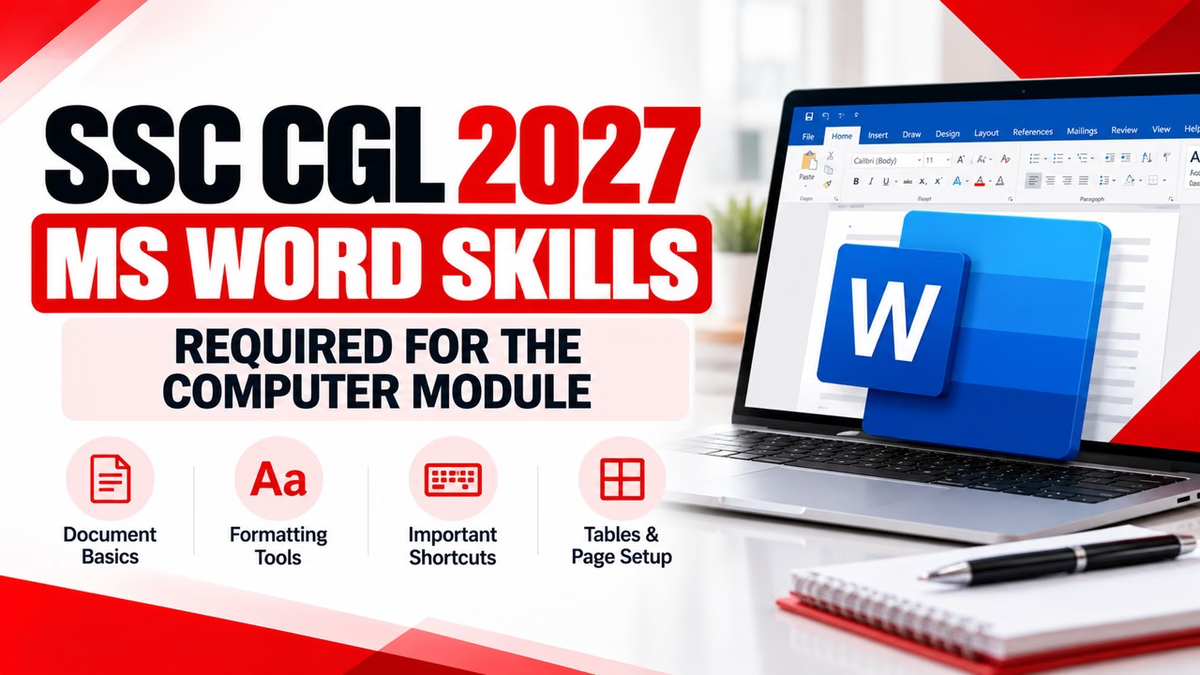
Learn the important MS Word concepts, formatting tools, shortcuts and practical skills that SSC CGL aspirants should revise for the Computer Knowledge section.
The SSC CGL 2027 notification has not yet been released. Therefore, candidates should use the latest available SSC CGL syllabus and examination framework as a preparation reference and verify the final instructions from the official SSC notification when it is released.
MS Word is one of the most commonly used word-processing applications and its basic concepts are useful for competitive-exam computer awareness. Candidates preparing for SSC CGL should understand not only the names of Word tools but also what each tool is used for.
The latest available SSC CGL framework includes MS Office-related knowledge within the Computer Knowledge area. For this reason, MS Word basics should be included in your revision plan along with computer fundamentals, shortcuts, internet, networking and cyber security.
| Topic | What to Revise |
|---|---|
| Document Basics | Creating, opening, saving and closing documents |
| Text Formatting | Font, size, bold, italic, underline and text effects |
| Paragraph Formatting | Alignment, indentation, spacing and line spacing |
| Lists | Bullets and numbering |
| Page Setup | Margins, orientation, page size and page breaks |
| Tables | Creating, editing and formatting tables |
| Find & Replace | Searching and replacing text |
| Review Tools | Spelling and grammar checking |
| Header & Footer | Basic document header, footer and page numbering concepts |
| Keyboard Shortcuts | Frequently used MS Word commands |
Candidates should know the basic operations performed while working with a Word document. These concepts are simple but frequently appear in computer-awareness preparation material.
Text formatting changes the appearance of selected text. Candidates should understand the purpose of common formatting commands rather than simply remembering their names.
Paragraph formatting controls how text is positioned and spaced within a document. These concepts are important for understanding document formatting.
Keyboard shortcuts can save time and are useful for quick computer revision. Candidates should learn the most commonly used commands first.
| Shortcut | Function |
|---|---|
| Ctrl + N | Create a new document |
| Ctrl + O | Open a document |
| Ctrl + S | Save |
| Ctrl + P | |
| Ctrl + C | Copy |
| Ctrl + X | Cut |
| Ctrl + V | Paste |
| Ctrl + A | Select all |
| Ctrl + Z | Undo |
| Ctrl + Y | Redo |
| Ctrl + F | Find text |
| Ctrl + H | Find and replace |
| Ctrl + B | Bold |
| Ctrl + I | Italic |
| Ctrl + U | Underline |
Candidates should understand the basic controls used to change the layout of a document.
Portrait orientation is generally taller than it is wide, while Landscape orientation is wider than it is tall. Candidates should be able to distinguish between the two.
Tables are used to arrange information in rows and columns. Basic table operations are useful for general MS Word knowledge.
The Find and Replace feature helps users locate specific words or phrases and replace them with another word or phrase. It is especially useful when working with lengthy documents.
MS Word provides tools that help users identify possible spelling and grammar issues in documents. Candidates should understand the purpose of these tools and distinguish them from ordinary text-formatting features.
Headers and footers allow information to appear repeatedly at the top or bottom of document pages. Page numbers can also be inserted into a document for easier navigation.
Candidates should understand the difference between a header and a footer and know where page numbers are generally placed.
Use these questions as a quick self-test after completing your revision.
1. Which shortcut is commonly used to save a Word document?
Answer: Ctrl + S
2. Which shortcut is used to find text in a document?
Answer: Ctrl + F
3. Which shortcut opens Find and Replace?
Answer: Ctrl + H
4. Which alignment makes text appear evenly aligned along both margins?
Answer: Justify
5. Which shortcut is used to make selected text bold?
Answer: Ctrl + B
6. Which shortcut is used to underline selected text?
Answer: Ctrl + U
7. What is the purpose of a header in a document?
Answer: To display repeated information at the top of document pages.
8. What is the purpose of a footer?
Answer: To display repeated information at the bottom of document pages.
9. Which feature helps replace one word or phrase with another throughout a document?
Answer: Find and Replace
10. Which orientation is wider than it is tall?
Answer: Landscape
| Concept | Remember |
|---|---|
| Header | Appears at the top of the page |
| Footer | Appears at the bottom of the page |
| Portrait | Taller page orientation |
| Landscape | Wider page orientation |
| Find | Locates text |
| Replace | Replaces selected text with another text |
| Bold | Makes text visually heavier |
| Justify | Aligns text evenly along both margins |
Start with common Word terminology such as document, paragraph, font, alignment, margin, header, footer, table and page break.
Learn the most frequently used shortcuts and revise them repeatedly. Practising the commands while using a computer is more effective than simply reading a list.
Revise font formatting, paragraph alignment, spacing, indentation, bullets, numbering and page layout.
Solve computer-awareness questions after every revision session. Mark the questions you answer incorrectly and revise those concepts again.
| Day | Revision Focus |
|---|---|
| Day 1 | Document basics and text formatting |
| Day 2 | Paragraph formatting, alignment and lists |
| Day 3 | Page setup, tables, headers and footers |
| Day 4 | Keyboard shortcuts and Find & Replace |
| Day 5 | Full revision and timed practice questions |
MS Word preparation for SSC CGL should focus on practical understanding rather than trying to memorise every feature of the software. Start with document basics, text formatting, paragraph formatting, page setup, tables and commonly used keyboard shortcuts.
Once these concepts are clear, revise Find and Replace, headers and footers, page numbering and basic proofreading tools. Combine your revision with objective questions so that you can identify the correct concept quickly during the Computer Knowledge Test.
For SSC CGL 2027, always check the official SSC notification once released for the final syllabus, examination pattern and instructions.
Strengthen your SSC CGL preparation with structured study, focused revision and regular practice at Katara Academy.